What to Know First When Introducing Cloudflare AI Gateway
The minimum steps to start using Cloudflare AI Gateway from Workers AI, and what to understand about its role, settings, and checkpoints before moving to the OpenAI-compatible API.

What to Know First When Introducing Cloudflare AI Gateway
Introduction
When you first try to use Cloudflare AI Gateway, it is a little confusing.
From the name alone, you can tell it is a way to route LLM API traffic through Cloudflare. But when you actually start using it, it is hard to see whether you should use it with Workers AI, swap in an OpenAI-compatible API URL, or what exactly you need to create on the Cloudflare side.
In the previous article, I verified how much of an LLM request and response can be logged when going through AI Gateway.
However, that article assumed AI Gateway was already in use, which made the first setup step harder to follow.
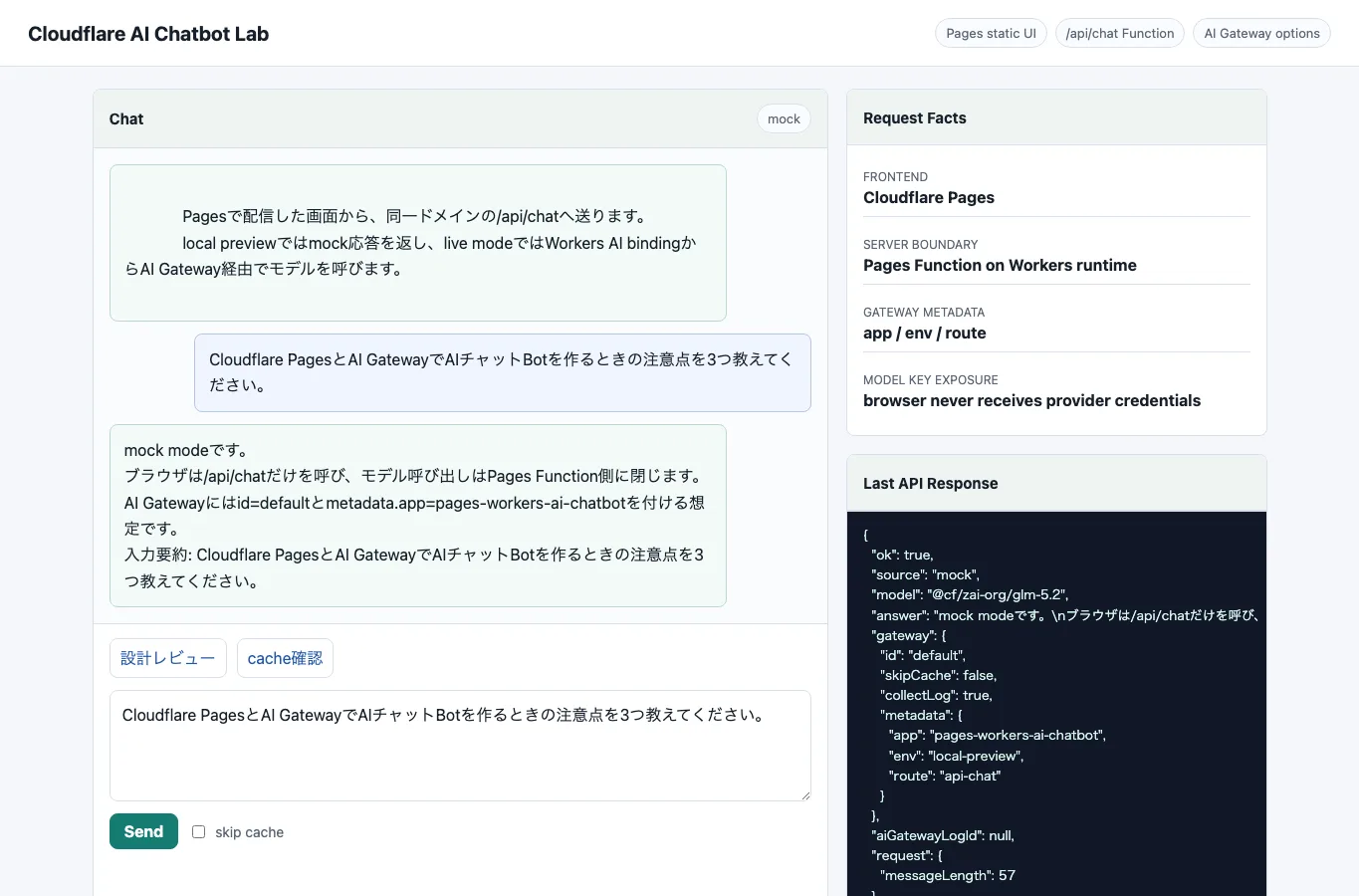
In this article, I will isolate just the AI Gateway setup. I will walk through the minimum configuration using Workers AI, routing requests through AI Gateway, and checking the logs in the Cloudflare dashboard.
What AI Gateway Does
AI Gateway is an entry point placed in front of requests to LLM providers.
Instead of calling OpenAI, Anthropic, Workers AI, and others directly from your application, you route traffic through AI Gateway. This makes it easier to observe request counts, models, status codes, latency, token counts, cost, and errors on the Cloudflare side.
Roughly speaking, the architecture looks like this:
Application
  ↓
Cloudflare AI Gateway
  ↓
LLM provider
AI Gateway is not a tool for recording your entire application processing as a trace. If you want to see which documents were retrieved in RAG, which tools an agent called, or what user evaluations looked like, you will need an AgentOps tool like Langfuse.
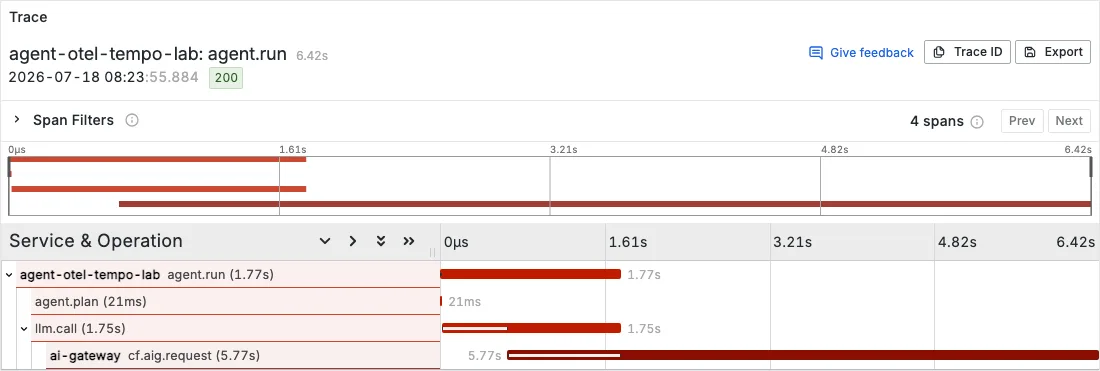
On the other hand, it is a useful entry point for first answering questions like: which LLM call went to which model, how many times, at what cost, and with what delay.
Start with Workers AI
While AI Gateway can also be used by swapping the URL of an OpenAI-compatible API, trying it with Workers AI first is easier to understand.
The reason is that you can complete verification entirely within Cloudflare: Cloudflare Workers, Workers AI, and AI Gateway. You can set aside OpenAI API keys and external provider settings for a moment and focus on the feeling of routing through AI Gateway.
The minimum setup for this article is as follows:
Browser
  ↓
Cloudflare Worker
  ↓
Workers AI binding
  ↓
AI Gateway
  ↓
Workers AI model
I will not build a complex app here. I will make a small setup where opening the Worker URL in a browser triggers a single response from a Workers AI LLM.
Prerequisites
You need three things:
- A Cloudflare account
- Node.js
- Wrangler
Wrangler is the CLI for local development and deployment of Cloudflare Workers. If you do not have it yet, it will be set up automatically when you create a project.
In the official Cloudflare instructions, you create a Worker project with npm create cloudflare@latest.
npm create cloudflare@latest -- hello-aiWhen prompted, the following choices are enough for now:
What would you like to start with?: Hello World example
Which template would you like to use?: Worker only
Which language do you want to use?: TypeScript
Do you want to deploy your application?: No
Move into the created directory.
cd hello-aiAdding the Workers AI Binding
To call Workers AI from a Worker, add the AI binding to the Wrangler configuration.
If you are using wrangler.toml, add the following:
[ai]
binding = "AI"
If you are using wrangler.jsonc, the setting looks like this:
{
  "ai": {
    "binding": "AI"
  }
}
With this setting, you can call Workers AI from the Worker code via env.AI.
Calling an LLM Through AI Gateway
Next, rewrite the Worker logic.
Update src/index.ts as follows:
export interface Env {
  AI: Ai;
}

export default {
  async fetch(_request, env): Promise<Response> {
    const response = await env.AI.run(
      "@cf/meta/llama-3.1-8b-instruct-fast",
      {
        prompt:
          "List three benefits of using Cloudflare AI Gateway for LLM app operations, briefly.",
      },
      {
        gateway: {
          id: "default",
          skipCache: true,
        },
      },
    );

    return Response.json(response);
  },
} satisfies ExportedHandler<Env>;
The key point is the third argument to env.AI.run, where gateway is specified:
{
  gateway: {
    id: "default",
    skipCache: true,
  },
}
Specifying id: "default" uses the default AI Gateway on the Cloudflare side. Even if you have not manually created a Gateway yet, sending an authenticated request will create the default Gateway.
For production use, if you want an explicit name, create a Gateway in the Cloudflare dashboard and specify that Gateway ID.
Running Locally
For local development, use Wrangler:
npx wrangler devYou may be asked to log in to Cloudflare the first time. After logging in, open the local URL shown by Wrangler.
In most cases it will be:
http://localhost:8787Open it in a browser, and if an LLM response is returned as JSON, the Worker is successfully calling Workers AI.
One thing to note: Workers AI uses your Cloudflare account’s AI execution even during local development. It is not a fully self-contained mock running only on your machine. Check how usage and billing are handled.
Checking Logs in the Dashboard
After sending a few requests, open AI Gateway in the Cloudflare dashboard.
What you want to see is:
gateway
provider
model
status
duration
request count
tokens
cost
logs
The first thing to confirm is whether the current requests are actually passing through AI Gateway.
Even if the Worker is returning a response, if nothing appears in the AI Gateway logs, the gateway setting may not be taking effect. Check the id specification, the binding configuration, and which Cloudflare account the request is going to.
Deploying
Once it works locally, deploy the Worker:
npx wrangler deployAfter deployment, you can access the Worker at a URL like:
https://hello-ai.<YOUR_SUBDOMAIN>.workers.devIf opening this URL returns the same response, the deployed Worker on Cloudflare is successfully calling Workers AI. At the same time, check that the AI Gateway logs show production requests.
Using the OpenAI-Compatible API
Once you are comfortable with AI Gateway through Workers AI, the next step is to swap the URL for the OpenAI-compatible API.
When calling OpenAI directly, you normally use an endpoint like this:
https://api.openai.com/v1/chat/completionsWhen routing through AI Gateway, replace it with the Cloudflare Gateway URL:
https://gateway.ai.cloudflare.com/v1/{account_id}/{gateway_id}/openai/chat/completionsFor the Authorization header, you basically pass your OpenAI API key:
Authorization: Bearer <OPENAI_API_KEY>In other words, from the application side, you keep using the provider’s API key and only route the URL through AI Gateway.
With this setup, you can start observing LLM requests on the Cloudflare side without significantly changing your existing OpenAI SDK or fetch implementation.
Decisions to Make Before Introducing AI Gateway
AI Gateway is useful, but enabling it without thinking can be risky.
In particular, be careful if prompt or response bodies are being stored in the logs. This may be fine for personal development and testing, but if you are handling business data, personal information, customer data, or internal documents in prompts, you need to decide your log retention policy in advance.
At a minimum, it is a good idea to decide the following before introducing it:
- Which environments will route through AI Gateway?
- Whether to separate Gateway IDs by environment.
- Whether it is acceptable to store request/response bodies in logs.
- Who can view AI Gateway logs.
- Which logs to treat as the primary source during error investigation.
- How to divide responsibilities with other observability tools like Langfuse.
Personally, I recommend starting with a development environment or a small verification Worker, seeing what gets logged with your own eyes, and only then adding it to a production application.
Next Article
By now, you have set up the entry point to route LLM requests through AI Gateway.
Next, I will look at what kinds of logs actually get recorded in AI Gateway.
How Much of LLM Requests and Responses Can You Log with AI Gateway?
Setup instructions alone end at “it works.” In operations, what you really want to see is how far you can track prompts, responses, token counts, cost, latency, and errors.
In the next article, I will call the OpenAI-compatible API through AI Gateway and check the logs for both normal and error cases.